
Hintro: Starting from the pain point of “I can write it but I can’t shoot it”
Many content creators, bloggers, knowledge sharers, and educators face the same problem: the text content is ready, but producing videos is too costly.
You may have spent hours or even days completing:
- A detailed tutorial article
- A full story script
- A lecture manuscript for a course
- The core chapters of an e-book
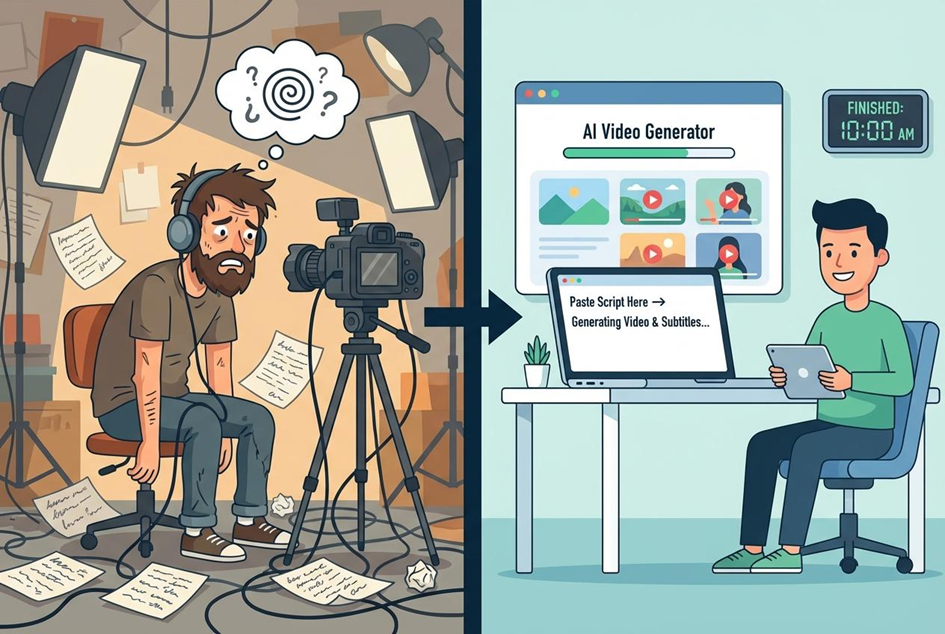
However, converting this text into video is often painful. You need:
- Expensive filming equipment
- Complex video editing software
- Arrangements for appearances or voice-over
- Time for production, scene setup, and background material collection
These steps are not only cumbersome but often become the biggest obstacle for creators.
This is exactly why Text to Video AI tools emerged. With an AI Text to Video Tool, you can directly convert text into usable video content—no shooting, no complex editing. As long as you can write, you can easily create AI videos from text, achieving efficient conversion from words to video.
Core function breakdown of Text to Video AI tools
Before starting hands-on operations, let’s first understand the core functions of Text to Video tools. Understanding how the tool works will help you avoid detours and improve the quality and efficiency of generated videos.
1. Text parsing and structure recognition
The first step of an AI Text to Video Tool is semantic parsing of the input text; this is the foundation of video generation. The system analyzes:
- Paragraph structure
- Semantic highlights
- Scene transition points
For example:
- Tutorial-type text → the system automatically splits each step into separate shots
- Story-type text → the system recognizes plot turning points and generates different visuals
This step is crucial because every frame of AI-generated video is built on the basis of text analysis. If the text structure is messy or the logic unclear, the generated video may have subtitle misplacement, mismatched visuals, etc.
Tip: Before inputting text, it’s recommended to organize the text as “paragraphs + steps + keywords” to maximize the effect of Text to Video.
2. Automatic generation of visuals and shots
After text parsing, the AI Text to Video Tool automatically matches visuals and shots:
- Each paragraph corresponds to one or more visual scenes
- The system generates images, animations, or short video clips
- It automatically arranges the timeline to form a preliminary video structure
For example:
- “Method 1: Set a daily reading goal” → the system generates an animated scene of someone reading at a desk
- “Method 2: Use fragmented time to read” → the system generates a scene of reading on a bus or subway
- “Method 3: Quickly summarize after reading” → the system generates a scene of someone taking notes or organizing materials on a computer
This step allows you to avoid searching for materials yourself—the AI can directly generate video clips that match the text, greatly reducing production costs.
3. AI voice-over and subtitle synchronization
Most Text to Video tools support automatic voice-over and subtitles—an important part of creating AI videos from text. Features include:
- Automatic generation of AI speech in multiple languages
- Adjustable speech rate and intonation
- Synchronized display of subtitles to ensure comprehensibility
With this feature, you can quickly generate instructional or explanatory videos without recording audio yourself or manually adding subtitles. For educational creators and independent media authors, this saves a lot of time while improving the professionalism and readability of videos.
4. Templates and style control
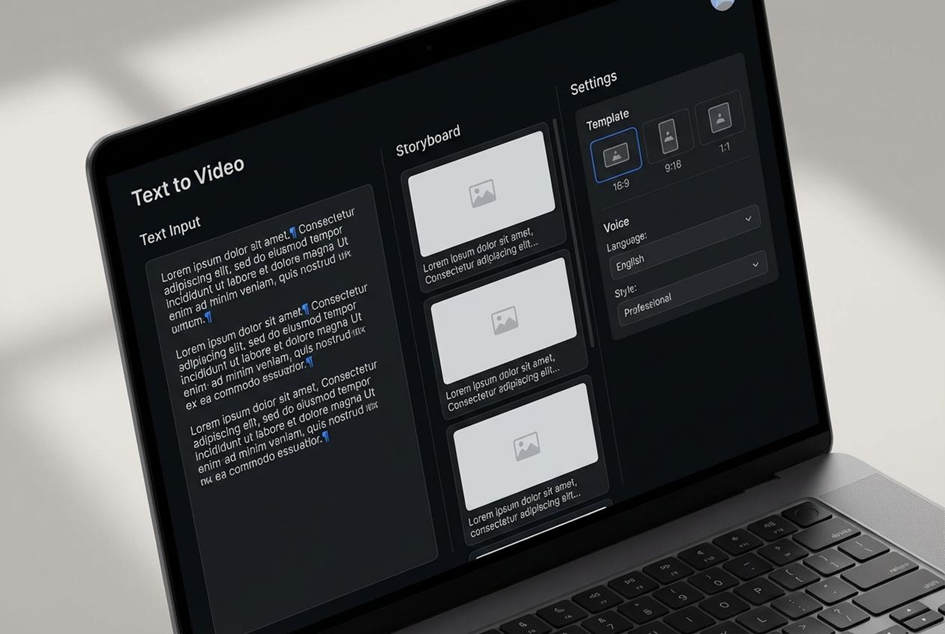
To meet different scenario needs, Text to Video tools usually provide rich video templates and style settings:
- Teaching / explainer / social short video templates
- Different visual styles (realistic, illustration, cartoon, animation)
- Video aspect ratios (16:9, 9:16, 1:1)
For example, if you want to publish a short video on Instagram or TikTok, choose a vertical 9:16 template; for YouTube lessons, 16:9 horizontal is more suitable. With these templates, the AI can preserve the core information in the text while generating videos that match the viewing habits of the target platform.
Operational steps and case demonstration (complete process from text to video)
Next, we’ll demonstrate in detail how to use a Text to Video AI tool to generate a video from text through a specific case so you can apply what you learn.
Case background
Suppose you have a piece of text on the topic:
“How to efficiently read an e-book every day: three methods”
Goals:
- Convert the text into a 60–90 second short video
- Ensure video content is clear and visuals match the text
- Useable for teaching, knowledge sharing, or social platform distribution
Through this case, we will demonstrate the full process from text preparation to final video generation.
Step 1 — Prepare and optimize your text content
Before using anAI Text to Video Tool, the structure and clarity of the text are crucial. Text quality directly affects the usability of the generated video.
Text preparation key points:
1. Each paragraph should convey one complete idea
2. Avoid very long or complex compound sentences
3. Make the logical order clear, e.g., “Step one, step two, step three”
4. Use keywords and emphasis to highlight core information
Sample text structure:
Method 1: Set a daily reading goal
Set a realistic daily reading goal to ensure the continuity of your reading habit.
Method 2: Use fragmented time to read
Make use of subway, bus, or waiting time to integrate reading into daily life.
Method 3: Quickly summarize after reading
After each reading session, organize notes or create a mind map to deepen memory and understanding.
This kind of text structure is very suitable for Text to Video system parsing and ensures each paragraph maps to a shot so the generated video is logically clear and content-complete.
Step 2 — Input the text into the AI Text to Video Tool
Open your chosen Text to Video AI tool; you’ll typically find an entry labeled “Text to Video” or “Create Video from Text.”
Specific steps:
1. Click the Text to Video function/module
2. Paste the organized text into the input box
3. Select the video language (ensure it matches your text)
4. Choose video length or allow default auto-matching
5. Click “Generate”
At this stage, the AI will analyze your text, split scenes, and generate an initial video draft. After this step, you’ll get a basic video prototype that includes visuals, subtitles, and automatic voice-over.
Step 3 — Choose Video Style and Application Scenario
After generating the first draft, you need to specify a clear style and application scenario for the video, which will directly affect the final look and its use. Most AI Text to Video tools offer multiple templates and styles:
- Educational / Tutorial: suitable for explanations, knowledge sharing, and online courses
- Explainer / Demo: suitable for short videos, product demos, or quick knowledge transfer
- Social Media Short: suitable for platforms like TikTok and Reels
When choosing a template, pay attention to:
- Match the aspect ratio to the target platform (16:9, 9:16, 1:1)
- Ensure the style fits the text content (formal explanation vs. playful cartoon)
- Check whether the system-generated visuals meet your scene requirements
Once you select the appropriate template, the AI will automatically match visual style and shot transitions to the text, making the video more lively and aligned with the topic.
Step 4 — Preview and Adjust the Automatically Generated Content
After AI video generation, the system usually provides a preview function. This stage is critical because the auto-generated video may contain issues such as:
- Visuals not fully matching the text
- Subtitles appearing with awkward line breaks or misalignment
- AI voice-over speed being unsuitable
Recommended actions:
- Check whether each paragraph’s corresponding scene matches your expectations
- Adjust mismatched shots or replace background素材 (background assets)
- Modify voice-over speed, intonation, or choose a different voice
- Fine-tune subtitle display timing to ensure comfortable reading
With these adjustments, you can polish an automatically generated video into a professional, usable piece—truly creating AI videos from text.
Step 5 — Export and Publish
The final step is exporting and publishing the video. Most AI Text to Video tools offer:
- Multiple resolution options (1080p / 720p / 4K)
- Various export formats (MP4, MOV)
- Direct sharing to social platforms or downloading to local storage
Export recommendations:
- Educational or knowledge-sharing videos → 1080p horizontal, suitable for YouTube
- Social media short videos → 9:16 vertical, suitable for TikTok / Reels
- Save the original project file for future edits and reuse
At this point you have completed the full process from text to video, easily converting written content into high-quality video works.
Optimization Tips — Improve Text to Video Quality
After mastering the basics, use these optimization tips to make videos more engaging, professional, and to improve viewer retention.
Tip 1 — Match Text Segments to Shots
Ensure each text segment has a reasonable length. Recommend about 15–25 Chinese characters per segment (or an equivalent concise English sentence) to help the AI generate visuals and voice-over smoothly. Overly long or short segments can cause:
- Disjointed AI-generated shots
- Unnatural voice-over phrasing
- Subtitles that are too fast or too slow
Tip 2 — Insert Visual Cues
Add visual cue phrases in the text, for example:
- “show chart”
- “display book cover”
- “character animation appears”
These cues help the AI Text to Video tool more accurately match visuals and improve the video’s expressiveness.
Tip 3 — Adjust Speech Rate and Pauses Appropriately
AI-generated voice-overs may be too fast or lack pauses, affecting comprehension. Recommendations:
- Set voice-over speed to around 0.9–1.1×
- Insert pauses before and after key points
- Emphasize important words or numbers
This significantly improves clarity and perceived professionalism.
Tip 4 — Add Background Music and Sound Effects
Appropriate background music and SFX enhance pacing and viewer experience:
- Educational videos → soft, steady background music
- Short social videos → rhythmic music to boost engagement
- Story videos → sound effects to increase immersion
Note: Use royalty-free music or obtain authorization to avoid copyright issues.
Summary / Review
By following this guide you have learned to:
- Understand the core functions of Text to Video tools
- Prepare text and input it into the AI system
- Choose video templates and styles
- Adjust visuals, voice-over, and subtitles
- Export and publish videos
- Use optimization techniques to improve quality
With ongoing practice, you’ll find AI Text to Video tools not only save a lot of time but also efficiently turn text into shareable videos, enabling your knowledge and creations to reach a wider audience.